
A PDF looks the same on every device, which is why forms, invoices, CVs and receipts are usually sent as PDFs. This guide explains what a PDF is, which PDF apps are worth using, and how to convert files to PDF: images and CSV tables online with FlyFiles, plus Word, Excel and PowerPoint with tools you already have.
Quick answer:
- Photos, screenshots and scans (JPG, PNG, HEIC, WebP…): upload them to a free FlyFiles PDF room and click PDF on each file.
- CSV spreadsheets: same FlyFiles room. The CSV becomes a clean, printable PDF table.
- Word, Excel, PowerPoint: use File → Save As → PDF (Windows) or File → Export → PDF (Mac) in the Office app.
- Anything you can print: choose Microsoft Print to PDF (Windows) or PDF → Save as PDF in the Mac print dialog.
#What is a PDF?
PDF (Portable Document Format) is a file format created by Adobe in 1993 to show documents exactly as they were designed, with the same fonts, layout and images, on any computer, phone or printer. Since 2008 it has been an open international standard (ISO 32000), so anyone can build PDF software without paying Adobe. The current version is PDF 2.0.
A PDF file can contain:
- Text and fonts (embedded, so the document looks right even if your computer doesn't have the font).
- Images and vector graphics that stay sharp at any zoom.
- Links, bookmarks and a table of contents.
- Fillable form fields, comments and digital signatures.
- Passwords and permissions that block opening, printing or copying.
#Why convert files to PDF?
- It looks the same everywhere. A Word file can shift its layout on another computer, but a PDF does not.
- Anyone can open it. Every modern browser, phone and computer has a built-in PDF viewer.
- It's what forms and offices expect. Job applications, banks, visa forms and tax offices usually ask for PDFs.
- It prints exactly. Page size, margins and page breaks are fixed.
- It's harder to edit by accident, which matters for contracts, invoices and receipts.
- Many files in one. You can merge scans and photos into a single document.
#Types of PDF files
Not all PDFs are the same. You may run into these variants:
| Type | What it's for |
|---|---|
| Standard PDF | Everyday documents, exports from Word, Excel and Google Docs |
| Scanned (image) PDF | Photos or scans saved as PDF pages. Text isn't selectable until you run OCR. |
| Searchable PDF (OCR) | Scanned PDF with a hidden text layer, so you can search and copy text |
| PDF/A | Long-term archiving: fonts and colors embedded, no external content |
| PDF/X | Professional printing with exact colors and bleed |
| PDF/UA | Accessible PDFs for screen readers |
| Fillable PDF form | Interactive fields you can type into, sign and save |
#Best PDF apps for Windows, Mac and phones
You don't need to pay for a PDF app to view, fill in and print PDFs. Here are the most useful options.
#Free PDF viewers and editors
- Web browsers (Chrome, Edge, Safari, Firefox): open any PDF, fill simple forms, and print. Microsoft Edge can also highlight, draw and add text.
- Adobe Acrobat Reader (Windows, Mac, iOS, Android): the reference viewer, with forms, comments and signatures. It's free, but editing and converting need a paid plan.
- Apple Preview (Mac): it's built in and very capable. You can merge PDFs, reorder pages, sign, annotate, add a password, and export images to PDF.
- Apple Files app (iPhone/iPad): scan documents to PDF, mark them up and sign.
- Google Drive (all platforms): view PDFs, scan documents to PDF with the Android app, and run OCR on scans.
- LibreOffice (Windows, Mac, Linux): free office suite. It exports any document to PDF, including PDF/A, and LibreOffice Draw can edit simple PDFs.
- PDF-XChange Editor and Foxit PDF Reader (Windows): lightweight free viewers with good annotation tools.
#Paid PDF editors
- Adobe Acrobat Pro: full editing, OCR, conversion to and from Office formats, redaction and e-signatures.
- PDF Expert (Mac/iOS) and Nitro PDF Pro (Windows/Mac): popular, cheaper Acrobat alternatives.
#How to convert documents to PDF with built-in tools
#Word, Excel and PowerPoint
- Windows: File → Save As, choose PDF (*.pdf) as the file type, then Save.
- Mac: File → Export (or Save As), choose PDF.
- Microsoft 365 on the web: File → Download → Download as PDF.
- Google Docs, Sheets and Slides: File → Download → PDF document (.pdf).
- LibreOffice: File → Export as PDF, which also offers PDF/A for archiving.
Tip for Excel: set the print area and choose Fit All Columns on One Page in the print settings before exporting, so wide tables aren't cut across several pages.
#Print to PDF (works from almost any app)
- Windows 10/11: press Ctrl + P, choose the Microsoft Print to PDF printer, and click Print.
- Mac: press ⌘ + P, open the PDF menu in the bottom-left corner, and choose Save as PDF.
#iPhone and Android
- iPhone: in Photos, select the photos → Share → Print. Then tap Share again in the print preview and choose Save to Files. In the Files app you can also long-press an image and choose Create PDF.
- Android: open the photo or document → Share or ⋮ → Print → Save as PDF.
#Convert files to PDF online with FlyFiles
FlyFiles.io is a free file-sharing service with built-in conversion. Upload your files once, then download each one as a PDF, or share the room link so someone else can download the PDFs. You don't need an account or an app, and nothing gets watermarked.
#Step 1: Open a PDF conversion room
Go to flyfiles.io/room/new?template=pdf. A private room with its own link is created for you.
#Step 2: Upload your files
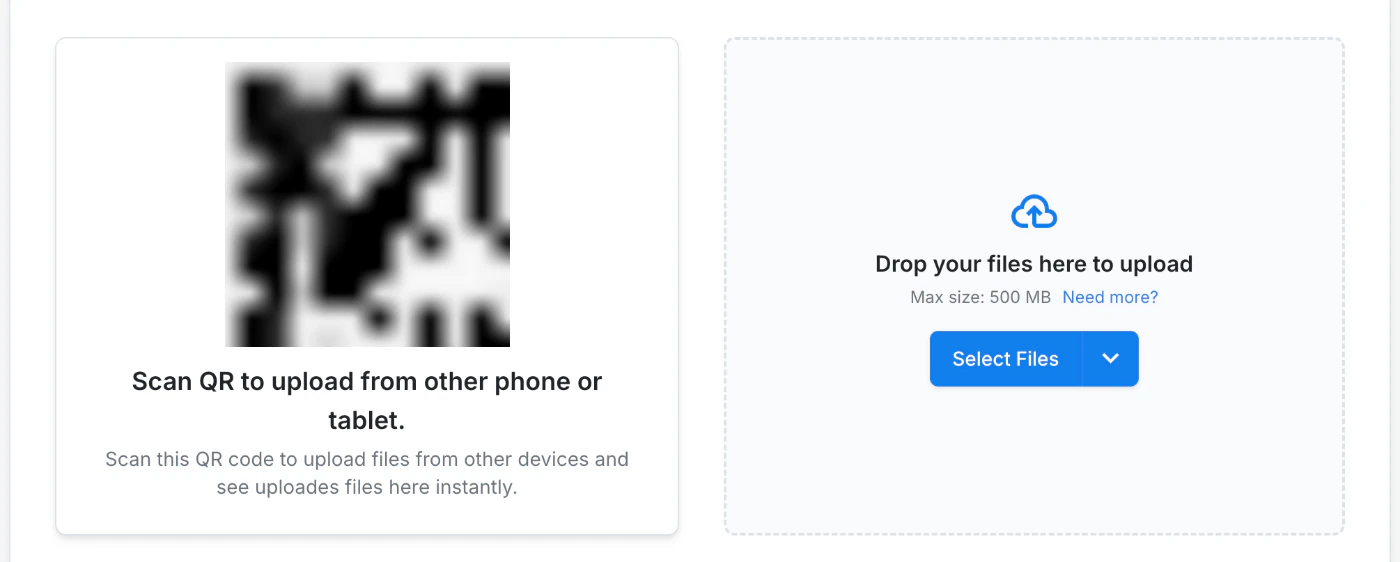
Drag and drop your files, or click Select Files. On a phone, scan the QR code to upload photos and screenshots straight from your gallery.
#Step 3: Click PDF next to a file
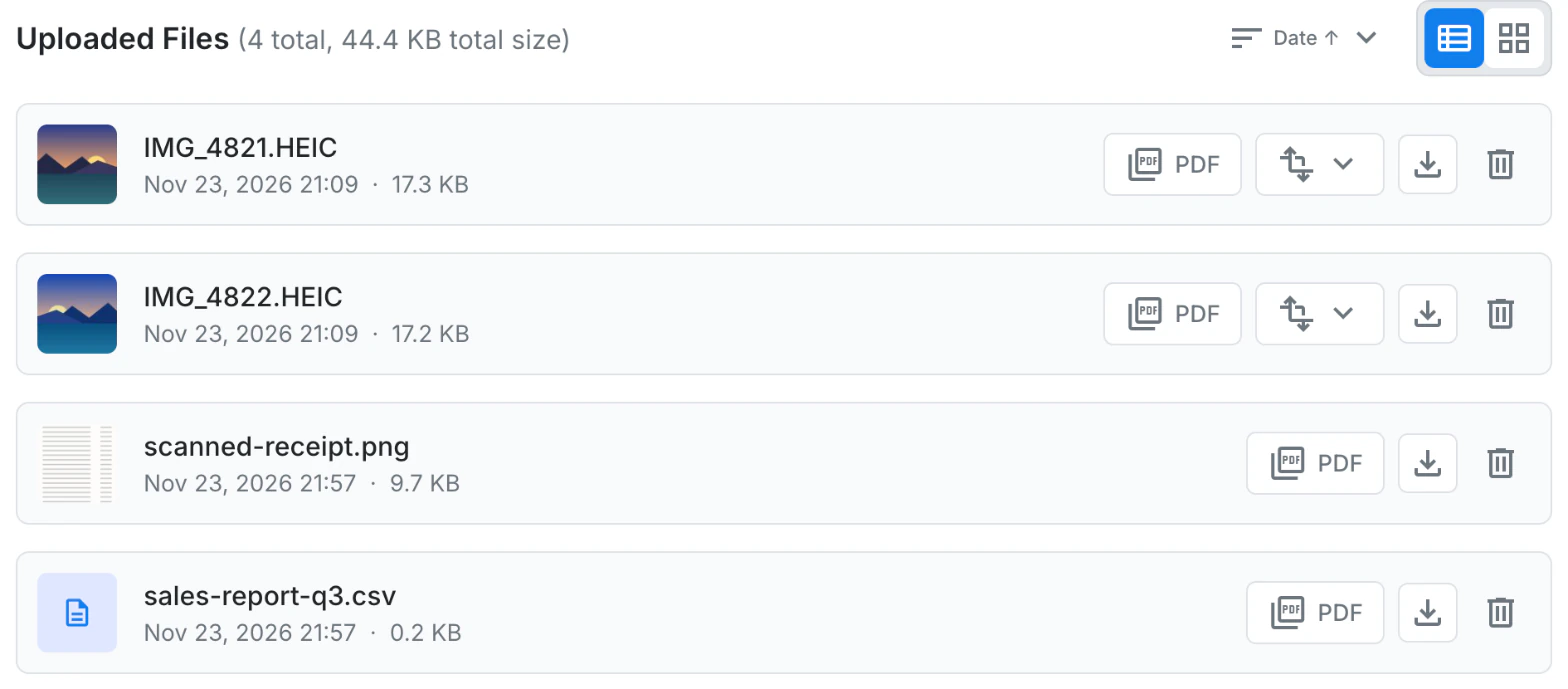
Every file that can be converted gets a PDF button. Click it and the PDF version downloads automatically.
#Step 4: Check the result
Images become an A4 page, portrait or landscape to match the photo's orientation. CSV files become a formatted table with a header row and borders, ready to print or attach to an email.

#Which files can FlyFiles convert to PDF?
| File type | Extensions | Result |
|---|---|---|
| Photos and images | .jpg, .jpeg, .png, .gif |
One A4 page per image, fitted to page width |
| Modern image formats | .webp, .avif |
One A4 page per image |
| iPhone photos | .heic |
One A4 page per photo, no Windows extensions needed |
| Photoshop files | .psd |
Flattened image on an A4 page |
| CSV spreadsheets | .csv |
Printable table; switches to landscape for tables with more than 7 columns |
Not converted yet: Word (.doc, .docx), Excel (.xls, .xlsx), PowerPoint (.ppt, .pptx) and plain-text files. For these, use Save As → PDF in the Office app or Google Docs as described above. You can still upload and share them on FlyFiles like any other file.
Typical uses:
- Turn receipt and invoice photos into PDFs for expense reports.
- Convert iPhone HEIC photos to PDF for application forms that only accept PDF.
- Turn a CSV export from your bank, shop or CRM into a readable, printable report.
- Collect scans from several people in one room. Everyone uploads, and you download the PDFs.
Free limits: up to 500 MB per room, with no signup. Rooms and files are deleted automatically after 12 hours. Signing in gives you bigger rooms and longer storage.
Convert your files to PDF now →
#Tips for better PDFs
- Photograph documents in good light, flat, and from straight above. Crop the edges before converting.
- Use PNG or high-quality JPG for scans with small text.
- Keep CSV files simple: one header row, a comma separator, and no merged cells.
- Name files clearly before uploading (e.g.
receipt-2026-11-hotel.png). The PDF keeps a similar name. - Need searchable text from a scan? Open the PDF in Google Drive (Open with → Google Docs) or Acrobat to run OCR.
#Convert to PDF: frequently asked questions
#Is converting files to PDF online free?
Yes. On FlyFiles, converting images and CSV files to PDF is free and needs no account. Other sites often limit you to a few files per day or add watermarks. FlyFiles does neither.
#Can I convert a JPG or PNG to PDF without installing anything?
Yes. Upload the image to a FlyFiles room and click PDF. On a Mac you can also open the image in Preview and choose File → Export as PDF. On Windows, open it in Photos and print to Microsoft Print to PDF.
#How do I convert HEIC photos from my iPhone to PDF?
Upload the .heic files to FlyFiles and click PDF. The conversion runs on the server, so it works even on Windows PCs that can't open HEIC files. On the iPhone itself, use Share → Print → Share → Save to Files.
#How do I convert Word or Excel files to PDF?
Open the file in Word or Excel and choose File → Save As → PDF (Windows) or File → Export → PDF (Mac). In Google Docs or Sheets, use File → Download → PDF. FlyFiles doesn't convert Office documents yet, but you can upload them to share with others.
#Can I convert a CSV file to PDF?
Yes. FlyFiles turns a CSV into a formatted PDF table with a header row. Wide tables with more than seven columns are automatically laid out in landscape with a smaller font, so they fit on the page.
#Are my files safe when I convert them online?
Each FlyFiles room has a random, unguessable link, and all files are deleted automatically after 12 hours. Only people you share the link with can see your files. For highly confidential documents, use the offline methods (Save as PDF or Print to PDF) instead.
#Will the PDF look the same as my original file?
Images are placed on an A4 page at full page width, keeping their proportions. CSV files are rendered as a simple table, so colors, formulas and formatting from Excel are not included (CSV files don't store them).
#What's the best free PDF app?
For most people, the browser plus the built-in tools are enough: Preview on Mac, Edge on Windows, Files on iPhone. Adobe Acrobat Reader is the best free app for complex forms and signatures, and LibreOffice is the best free option for exporting documents to PDF/A.