
You downloaded an image and got a .webp. A designer sent you a .psd. Your iPhone saved a .heic. All of these are good formats, but many websites, Office documents, print shops and older apps only accept JPG or PNG. This guide explains what WebP, AVIF, PSD and HEIC files are and how to convert them to JPG or PNG on a Mac, on Windows, or online in a couple of clicks with FlyFiles.
Quick answer:
- Mac: open the file in Preview → File → Export → choose JPEG or PNG. This works for WebP, AVIF, PSD and HEIC.
- Windows: open WebP in Photos or Paint → Save as JPG. AVIF and HEIC need a free Microsoft Store extension first, and PSD needs Photoshop, GIMP or a free viewer.
- Any device: upload your files to a free FlyFiles room, click convert and pick JPG or PNG.
Skip the setup: convert your images online now. It's free, needs no signup, and works in any browser on Windows, Mac, Android and Chromebook.
#The four formats at a glance
| Format | Extension | Made by | Best at | Main problem |
|---|---|---|---|---|
| WebP | .webp |
Google (2010) | Small web images, transparency, animation | Many upload forms, Office versions and print services reject it |
| AVIF | .avif |
Alliance for Open Media (2019) | Smallest files, HDR and wide color | Windows needs an extension; many apps can't open it |
| PSD | .psd |
Adobe | Editable Photoshop projects with layers | Needs Photoshop or a compatible editor; files are huge |
| HEIC | .heic, .heif |
MPEG / Apple (2017) | iPhone photos at half the size of JPEG | Windows and most browsers can't open it |
#What is a WebP file?
WebP is an image format Google released in 2010 to make websites load faster. It is based on the VP8 video codec and can store images in two ways:
- Lossy, like JPEG, but usually 25–35% smaller at the same visual quality.
- Lossless, like PNG, but around 25% smaller.
WebP also supports transparency and animation, so one format can replace JPEG, PNG and GIF. Every modern browser displays it, which is why sites like Google Images, YouTube thumbnails, Shopify stores and WordPress blogs serve images as WebP.
That's also why you end up with WebP files: when you right-click → Save image as on a web page, you often get a .webp instead of the JPG you expected. Then the trouble starts. Plenty of job portals, government forms, older Word and PowerPoint versions, and photo printing services still don't accept it.
#What is an AVIF file?
AVIF (AV1 Image File Format) is the newest of the four. It stores images compressed with the royalty-free AV1 video codec inside the same container family as HEIC. Its strengths:
- Very small files, often about half the size of JPEG and noticeably smaller than WebP at the same quality.
- HDR and wide color with 10- and 12-bit depth, so gradients don't band.
- Transparency and animation.
- No licensing fees, so browser makers adopted it quickly: Chrome, Edge, Firefox and Safari all display AVIF.
You'll mostly meet AVIF when saving images from modern websites and streaming services, or from phones and cameras that offer it as a space-saving option. Outside the browser, support is patchier: Windows needs the free AV1 Video Extension, and many photo editors, CMS platforms and upload forms don't recognize it yet.
#What is a PSD file?
PSD (Photoshop Document) is Adobe Photoshop's own project format. Unlike the others, it isn't meant for sharing a finished picture. It stores the whole editable project:
- Layers, layer groups and blend modes.
- Masks, adjustment layers and smart objects.
- Editable text, paths and vector shapes.
- Color profiles, guides and metadata.
A single PSD can be hundreds of megabytes and up to 30,000 × 30,000 pixels (bigger projects use .psb). Designers send PSDs for logos, banners, mockups and social media graphics. But if you only need to see or use the final image, a PSD is the wrong file: most people don't have Photoshop, and no website accepts PSD uploads. Converting it to PNG (to keep transparency) or JPG (for the smallest file) gives you the flattened final image.
#What is a HEIC file?
HEIC is the format your iPhone and iPad use for photos by default since iOS 11. It keeps photos at about half the size of a JPEG with the same quality, but Windows, most web browsers and many websites can't open it.
We cover HEIC in depth (where it comes from, iPhone settings, and every way to convert it) in our separate guide: How to convert HEIC to JPG on Mac, Windows & online. The FlyFiles steps below work the same way for HEIC as for WebP, AVIF and PSD.
#JPG or PNG: which should you convert to?
| Convert to | Choose it when | Keep in mind |
|---|---|---|
| JPG | Photos, email attachments, upload forms, printing | Smallest files; lossy; no transparency (transparent areas turn solid) |
| PNG | Logos, screenshots, graphics with text, anything with a transparent background | Lossless and keeps transparency; files are much bigger for photos |
Rule of thumb: photos → JPG. Logos, icons, PSD designs and anything with a transparent background → PNG.
#How to convert WebP, AVIF, PSD and HEIC on Mac
macOS opens all four formats natively: WebP since macOS Big Sur, AVIF since macOS Ventura, and PSD and HEIC for much longer. No extra apps are needed.
#Preview (one or many files)
- Open the file in Preview. To convert several at once, select them all in Finder and open them together.
- If you opened several, select them in the sidebar (⌘A).
- Choose File → Export (or Export Selected Images).
- Pick JPEG or PNG as the format and click Save.
For PSD files, Preview shows and exports the flattened image: all visible layers merged into one picture.
#Finder Quick Action (fastest)
Select the files in Finder, right-click, and choose Quick Actions → Convert Image. Pick JPEG or PNG, choose a size, and click Convert. The converted copies appear next to the originals.
#Terminal (batch conversion)
macOS includes the sips command. This converts every WebP in a folder to JPG:
1for f in *.webp; do sips -s format jpeg "$f" --out "${f%.*}.jpg"; done
Change *.webp to *.avif, *.psd or *.HEIC, or change jpeg to png, as needed.
#How to convert WebP, AVIF, PSD and HEIC on Windows
Windows support depends on the format.
#WebP on Windows 10 and 11
Windows opens WebP out of the box.
- Open the
.webpfile in Paint. - Choose File → Save as → JPEG picture (or PNG picture).
You can also open it in Photos and use … → Save as.
#AVIF on Windows
- Install the free AV1 Video Extension from the Microsoft Store.
- Open the
.aviffile in Photos and save a copy as JPG, or use one of the free batch tools below.
#PSD on Windows
Windows can't open PSD files by itself. Your options:
- Photoshop: File → Export → Quick Export as PNG, or Export As to choose JPG.
- GIMP (free): open the PSD, then File → Export As and type a
.jpgor.pngname. GIMP merges the visible layers. - IrfanView or XnView MP (free viewers): open the PSD and Save as JPG or PNG.
#HEIC on Windows
Install HEIF Image Extensions (and if needed HEVC Video Extensions) from the Microsoft Store, then open the photo in Photos or Paint and save it as JPG. Full steps are in our HEIC to JPG guide.
#Batch conversion on Windows
For a whole folder of mixed files, XnConvert (free) is the easiest: drag in the files, set the output to JPG or PNG, and click Convert. IrfanView does the same with File → Batch Conversion. Or skip installing anything and upload the folder to FlyFiles.
#Convert WebP, AVIF, PSD and HEIC online with FlyFiles
Not on your own computer, don't want to install codecs or plugins, or need to send the images to someone else anyway? FlyFiles.io is a free file-sharing service with built-in image conversion. There's no account, no watermark and nothing to install, and it works the same on Windows, Mac, Android, iPhone and Chromebook.
#Step 1: Open a new room
Go to flyfiles.io/room/new. A private room with its own unguessable link is created for you instantly.

#Step 2: Upload your WebP, AVIF, PSD or HEIC files
Drag and drop your files onto the upload area, or click Select Files. You can mix formats and upload a whole folder at once. On a phone, scan the room's QR code to upload straight from your gallery.
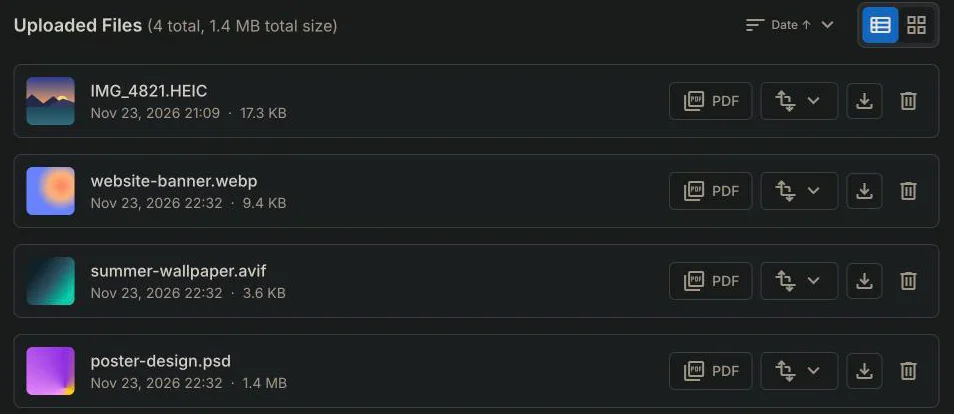
#Step 3: Click convert and choose JPG, PNG or PDF
Every WebP, AVIF, PSD and HEIC file gets a convert button. Click it and pick the output:
- JPG for photos, email and upload forms.
- PNG for logos, PSD designs and anything with transparency.
- PDF if you need a document for printing or forms.

#Step 4: Download the converted image
The conversion runs on the FlyFiles server, so even a large PSD doesn't slow down your device. The JPG or PNG downloads automatically with the same file name and the new extension. Your original stays in the room, so you can convert it again to the other format. Use Download All to get every original in the room as one ZIP.

#Why convert images with FlyFiles?
- Four formats, one place: WebP, AVIF, PSD and HEIC all convert to JPG or PNG with the same two clicks.
- Free, no signup: up to 250 files and 500 MB per room.
- High quality: JPGs are saved at 85% quality, which looks identical to the original for normal viewing. PNGs are lossless.
- Private and temporary: only people with the room link can see your files, and everything is deleted automatically after 12 hours.
- Share and convert together: send the room link to a colleague, and they can download the originals or convert them to JPG themselves. No more "I can't open this file".
- PDF too: need a document instead? FlyFiles can also turn images into PDF. See our guide on converting files to PDF.
#Image conversion: frequently asked questions
#Does converting WebP or AVIF to JPG reduce quality?
A little, because JPG is lossy, but at 85% quality the difference isn't visible for normal photos. The bigger change is file size: a JPG is usually larger than the WebP or AVIF it came from, since those formats compress better. HDR and 10-bit color in AVIF are reduced to standard 8-bit in JPG. If you need a lossless copy, convert to PNG.
#Why does my converted image have a black or white background?
The original had transparency, and JPG doesn't support it, so transparent areas become a solid color. Convert to PNG instead to keep the transparent background. This often happens with logos saved as WebP and with PSD designs.
#What happens to layers when I convert a PSD?
They are merged (flattened) into a single image that looks like the visible result in Photoshop. Hidden layers are not shown, and text and effects become regular pixels, so you can't edit them in the JPG or PNG. Keep the original PSD if you might need to edit it later. If a PSD looks blank or wrong after conversion, it may have been saved without Photoshop's Maximize PSD and PSB File Compatibility option. Re-saving it with that option turned on usually fixes it.
#What happens to animated WebP or AVIF files?
JPG and PNG can't animate, so the result is a still image of one frame. To keep the animation, convert it to GIF or MP4 with a dedicated tool.
#Why do I get WebP files when I save images from websites?
Websites serve WebP because it loads faster. Your browser saves the file exactly as the site sent it. You can convert it afterwards with Preview on Mac, Paint on Windows, or FlyFiles in any browser.
#Can I open AVIF on Windows without converting?
Yes. Install the free AV1 Video Extension from the Microsoft Store and the Photos app can display AVIF. Every modern browser can also open AVIF files: drag one onto a Chrome, Edge or Firefox window.
#Can I open PSD files without Photoshop?
Yes. On Mac, Preview and Quick Look (press Space in Finder) show PSD files. On Windows, use GIMP, IrfanView or XnView MP. Or upload the PSD to FlyFiles and convert it to PNG or JPG in your browser.
#Is it safe to convert images online?
With FlyFiles, your files are stored in a private room that only people with its link can open, and they're deleted automatically after 12 hours. For very sensitive images, use the offline Mac or Windows methods above. See the FlyFiles privacy policy for details.
#Can I convert many files at once?
On Mac, select them all and use Preview or Finder's Convert Image quick action. On Windows, use XnConvert or IrfanView batch conversion. On FlyFiles, upload up to 250 files to one room and convert the ones you need.
#How do I convert HEIC iPhone photos?
The same way: Preview on Mac, Photos with the HEIF extension on Windows, or a FlyFiles room. Our HEIC to JPG guide covers HEIC in detail, including how to make your iPhone save JPG instead.